Dashboard module · User guide
Your own start page in FreeScout
The Dashboard module gives you a start page in FreeScout that you put together yourself: a board of cards you add, move, resize and remove again — the way you arrange tiles on a phone.
Every person has their own board. What you lay out is seen by nobody else, and what your colleague lays out is none of your business.
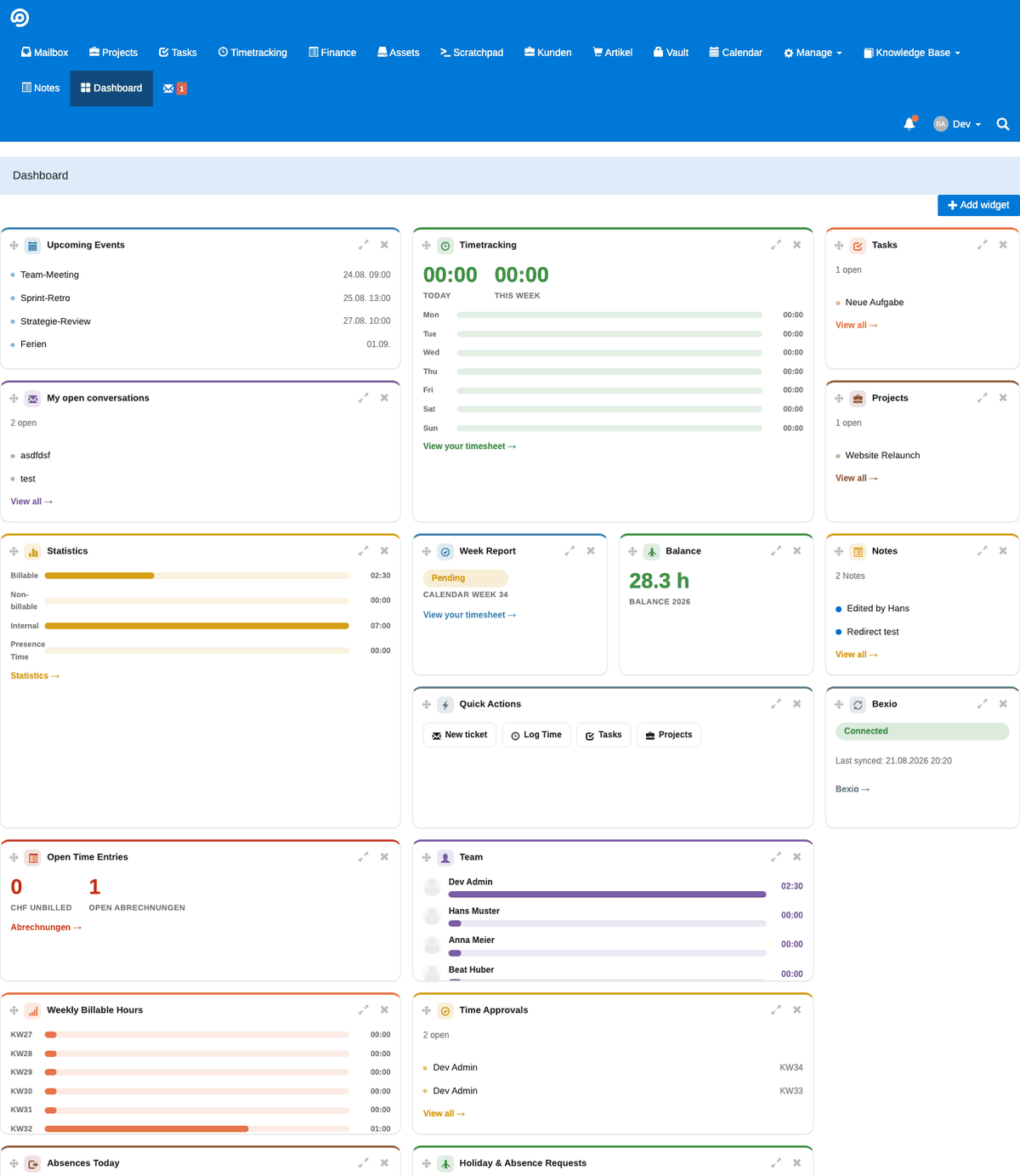
Setting up the board
Add card opens the selection of what is available to you. After that:
Your layout is saved automatically and looks exactly as you left it next time you open it.
Which cards exist
A selection of what comes with it:
- Upcoming events — what is next, from the Calendar module
- Timetracking and Week report — today's and this week's captured hours
- My open conversations — your open tickets, without digging through the mailbox
- Projects and Tasks — what is currently assigned to you
- Notes — your latest sticky notes
- Weather — current conditions and a forecast for a place of your choice
- Quick actions — one click to a new ticket, a time entry or a task
Plus more for team leads and administration: open invoices, who is on holiday today, what is waiting for approval.
Cards that need a module you do not have installed are not offered at all. There is no empty card and no error message — they simply are not in the selection.
Building your own cards
If none of the supplied cards shows what you need, you can build your own: under Manage → Settings → Dashboard. The page opens as a list of what exists, New card opens a form, and a click on a title opens that same card in it for editing.
Title, short description, an icon — and the content. The content is plain HTML, CSS and JavaScript: a table, a chart, an embedded status page, a countdown, whatever fits into a card.
Show preview renders it right away, in a box the size of a real medium card — before you save anything.
Because an own card is arbitrary code, only administrators may create or change one.
Bringing real figures into a card
A card can show your actual data. Pick one of the ready-made figures in the Data field and it arrives in your code as window.WIDGET_DATA — a list of rows, each with a label and a value.
| Area | What is on offer |
|---|---|
| Activities | revenue by category, month, customer or service; unbilled amount per customer; hours by project, category or person |
| Helpdesk | open conversations by mailbox or assignee; conversations by status; new conversations per day |
If none of them fits, write your own query instead. Name your columns label and value, and the same card code works either way.
Own queries are read only: a single SELECT statement, at most 500 rows, five seconds — and they run in a transaction that is always rolled back. A card can therefore change nothing. If the query is wrong, the error appears inside the card and in the preview, not as a broken page.
One thing to decide deliberately: a query is not limited to what the person looking at it would normally be allowed to see. Who sees the result is decided by availability — that is what teams are for.
Who gets which card
When saving you decide who the card reaches: Only me, Selected teams or Everyone. Whoever it reaches finds it in their own selection — they still decide themselves whether to lay it out.
That way the financial figures reach the finance people and the server status reaches the helpdesk, without either group having to see the other's cards. If someone leaves a team, or the card is aimed elsewhere, it also disappears from the board it was already on.
The teams themselves are maintained by the HR module, under Manage → Settings → Teams — who belongs to which team is staff data and therefore belongs there. Without the HR module, Selected teams is simply not offered; everything else works unchanged.
What your own code may and may not do
Every own card runs in its own isolated frame. That is deliberate: a card that goes to Everyone runs in your colleagues' browsers and must not act on their behalf there.
In practice that means:
- HTML, CSS and JavaScript work as they would in a standalone file, inline
<script>included. Images, fonts and scripts from outside can be loaded. - The frame cannot read your login or the page around it, and cannot query FreeScout itself. Data arrives exclusively through the
Datafield, which the server fills in before loading. document.cookie,localStorage,parent.documentandtop.locationdo not merely come back empty — they raise an error. So wrap any such access intry/catch.- For anything outside FreeScout, fetch it from your own service as usual, for example with
fetch.
Worth knowing
The Dashboard needs nothing
It works on its own. Individual cards wake up by themselves once the matching module arrives — Calendar, Activities, HR, Notes or Bexio — but none of them is required for the Dashboard itself.
Boards are personal, cards are not
Your layout is yours. An own card that you give to Everyone is there for everyone — and if it shows figures, everyone sees those figures. Availability is therefore the point to think about for a moment, not the code.
Not getting anywhere with this? Support