Module installer · User guide
Install modules, right inside FreeScout
With the module installer you install and update modules by other providers right inside FreeScout: choose the ZIP file, look at the check result, confirm. You need no access to the server and do not have to copy any files by hand.
The installer is for administrators only. A module works with all the rights of your FreeScout installation; whoever installs it decides for everyone.
Modules by let’s automate are not installed here but through LaStore, where every package is additionally checked against our signature.
Where to find it
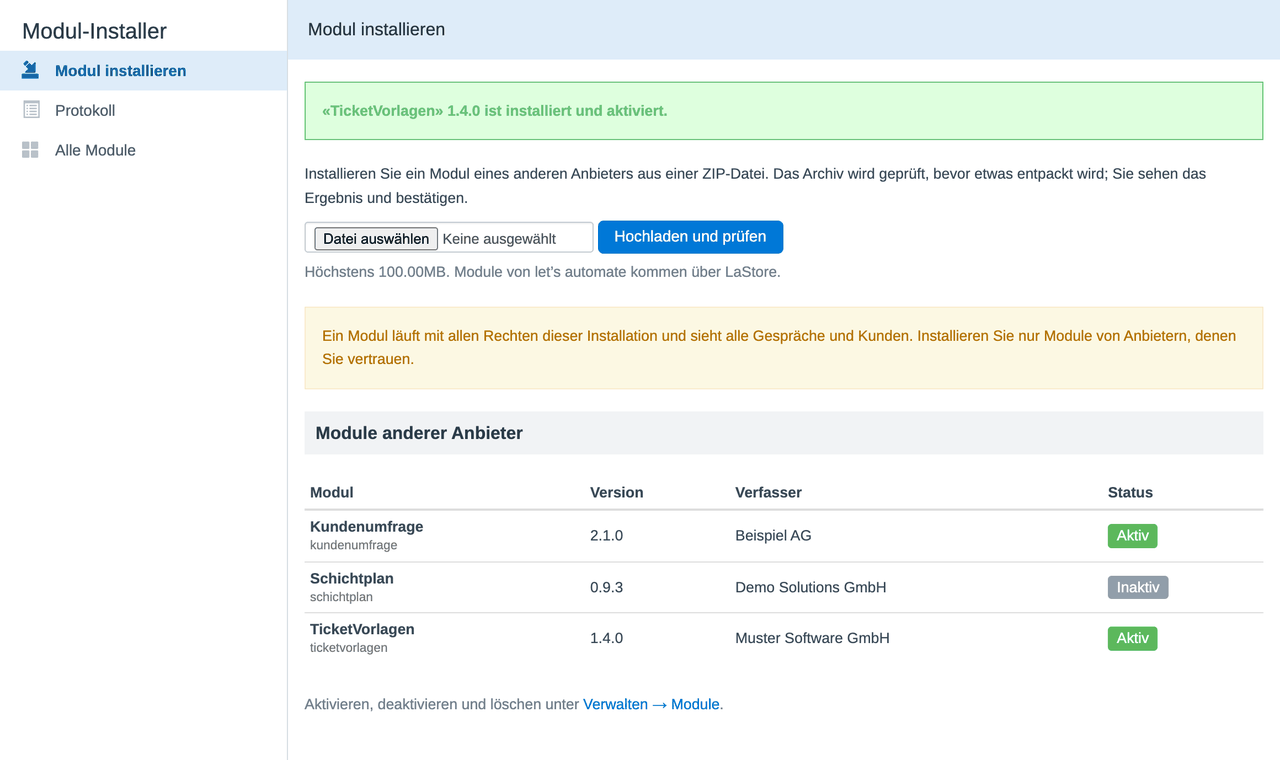
Under Manage → Module installer. On the left there are three entries: "Install module", "Log" and "All modules". The last one leads to FreeScout's usual module list, where you activate, deactivate and delete modules.

Installing a module
1. Click Choose file and select the module's ZIP file.
2. Click Upload and check.
3. Look at the check result.
4. Leave Activate after installing ticked if the module should run straight away, and click Install.
The file may keep the name it was downloaded with. An archive from GitHub is called something like ticketvorlagen-main.zip; the installer takes the correct folder name from the module itself.

After the installation a green message appears at the top, and the module shows up in the list of modules by other providers.
What is checked before installing
Before anything lands on the server, the installer reads the ZIP file and checks, among other things:
- whether it contains exactly one FreeScout module
- whether it fits your FreeScout version and the required PHP extensions are present
- whether it would overwrite another module
- whether it tries to place files outside its own folder
- whether the PHP files contain syntax errors that would bring FreeScout down. The code is not run for this.
If it finds an error, nothing is installed and you see the reason.

If a module this one depends on is missing, it is installed but not activated. The check result names what is missing.
Updating a module
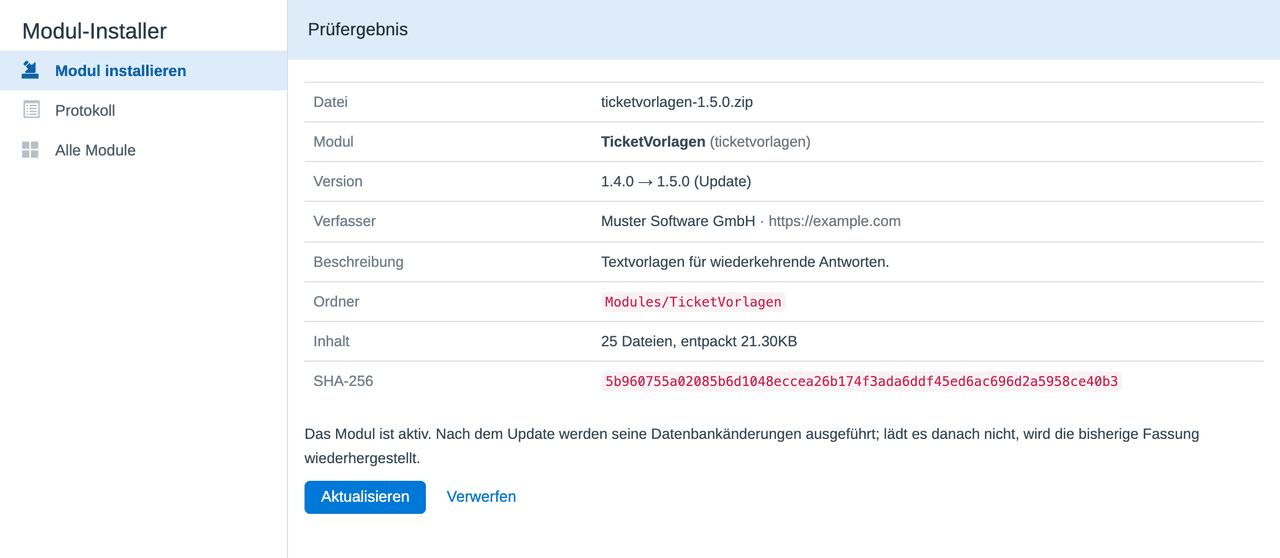
Many modules by other providers cannot be updated through FreeScout's normal update. For those you proceed exactly as for the first installation: upload the new ZIP file, check, click Update.
The check result shows from which version to which. If the new version is older or the same, a warning is shown.
Modules that can be maintained through FreeScout's normal update you keep updating there.
If an update does not start
Before every update the installer sets the previous version aside. After the update it starts FreeScout in a separate process and checks that everything still loads.
If it does not, it puts the previous version back in its place and switches it on again. You then see a red message with the reason. The saved version is kept for seven days.
This check finds errors that stop FreeScout from starting. An error that only appears when a particular feature is used is not caught by it.
The log
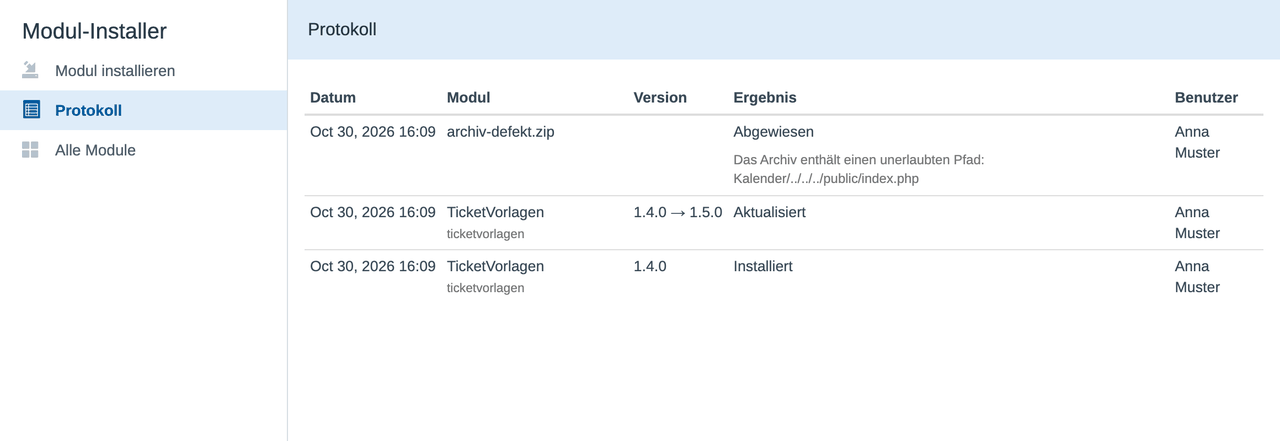
Under Log every step is listed: when, which module, from which version to which, with which result and by whom. For rejections and rolled-back updates the reason is shown below.
Good to know
The check does not replace trust
The installer catches faulty and damaged archives. Whether a module does what it promises, it cannot judge. So only install modules from providers you trust, and make a backup before larger changes.
Modules from the FreeScout directory
These can be uploaded too. Because only FreeScout itself checks their licence, they are installed but not activated. Activate them afterwards under Manage → Modules with their licence key.
Size
A ZIP file may be up to 100 MB, unpacked up to 300 MB. If your server accepts smaller uploads, its limit applies; it is shown below the field.
Deleting
You delete a module in FreeScout under Manage → Modules: deactivate it first, then delete it. If the folder is deleted on the server by hand while the module is still active, FreeScout no longer starts.
Not getting anywhere with this? Support